Workspace & projects
Start here if you are new. This page covers signing in, the layout of the application, the workspace (the company-level container) and projects (where all the work happens).
Related: Roles · Glossary · Troubleshooting
Signing in and getting around
What it does
Gets you into BimZone and explains the frame every page shares: the top bar, the project rail, the language toggle, global search, cloud activity and notifications.
Who uses it and why
Everyone. There is no self-service sign-up: access is invitation-only, so your first contact with the product is either the one-time setup screen (the very first owner of a fresh deployment) or an invitation email from a workspace admin.
Prerequisites
- A modern browser (Chrome, Edge, Firefox, Safari). The 3D viewer needs WebGL 2.
- For the first owner of a new deployment: the deployment's URL. Opening it before any account exists shows Setup.
- For everyone else: an invitation link.
Step-by-step
- First owner only — open the site. The Setup page asks for Your name, Email address, Password and Workspace name (for example "Acme Construction"). Submitting creates the workspace and makes you its owner. This page never appears again once an account exists.
- Invited user — open the link in your invitation email. The Invite page asks for Your name and Create a password (12 characters minimum, mixed case plus a digit). You land in the workspace, already a member of any project the invitation named.
- Every other time — go to the site, enter Email address and Password, press Sign in. If your workspace enforces two-factor authentication you are asked for the 6-digit code from your authenticator app (or a recovery code); a first-time user is walked through Set up two-factor authentication instead. If single sign-on is configured, the or continue with row offers the identity provider.
- You arrive on the Dashboard (the workspace's project list). Pick a project to open its rail.
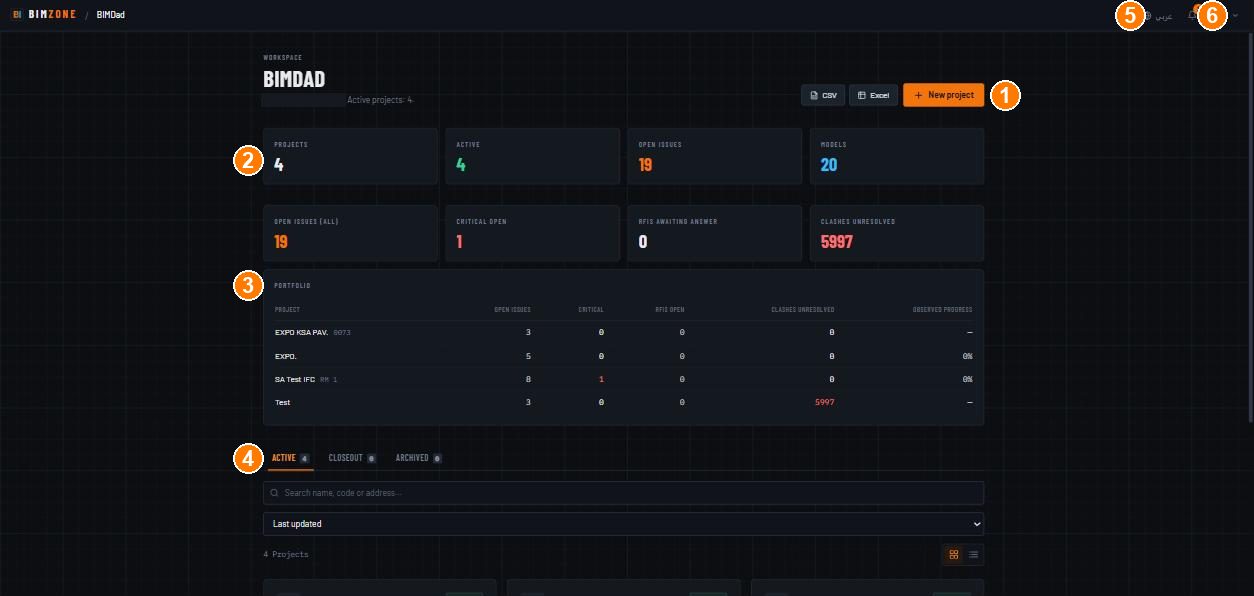
1 · New project · 2 · workspace KPI tiles · 3 · Portfolio table (one row per project, click to open) · 4 · Active / Closeout / Archived tabs · 5 · language toggle (عربي / EN) · 6 · notifications
Controls
- Top bar (everywhere): BimZone logo (back to the dashboard) · breadcrumb (workspace › project) · Switch language (عربي/EN — the whole UI, including PDFs you generate, follows it and Arabic is right-to-left) · Search (Ctrl K) (a command palette over elements, issues, RFIs and clashes; type at least 2 characters, ↑↓ to move, ↵ to open) · Cloud activity (background jobs: model conversions, clash runs, exports — "No background activity yet" when idle) · Notifications (badge with the unread count; Mark all read) · your avatar (opens Profile & security and Sign out).
- Project rail (left, inside a project): Overview · 3D Viewer · Models · Issues · RFIs · WIRs · MARs · Change Orders · Clash Detection · Reality Capture · Map · Sheets · Documents · Versions · Digital Twin · Assets & O&M · Spaces · Inspections · Safety · Site Diary · Progress · Standards & 4D · Takeoff & Cost · Copilot · Analytics · Settings. On a phone the rail becomes the Menu drawer.
- Profile & security (avatar › profile): Name, Email, Job title, Company · Change password (current + new) · Two-factor authentication (TOTP: Google Authenticator, Authy, 1Password; recovery codes are issued at setup; Enable MFA) · Passkeys (fingerprint / face / device PIN; a passkey is phishing-resistant and counts as two-factor on its own; Add passkey) · Active sessions (device, IP, started, expires; Revoke session on any of them) · Delete account (irreversible: profile anonymised, sessions revoked, memberships removed).
What happens after
Signing in issues a short-lived access token and a rotating refresh token; you stay signed in on that browser until you sign out, the session expires, or an admin terminates it. Every sign-in, failed attempt, MFA change and session termination lands in the workspace Audit log with IP and user agent.
Connections to other modules
The language toggle applies to every module and to generated PDFs. Global search reaches elements, issues, RFIs and clashes across the open project. Notifications are produced by issues, RFIs, WIRs, MARs, clash runs and automation rules.
Data in / data out
In: your name, email, password (hashed), MFA secret (encrypted), passkey public key. Out: nothing is exported from this screen; sessions and audit rows are visible to workspace admins.
Permissions and approval
Anyone with an account. MFA enforcement is a workspace-level decision (Workspace settings › Security). Owners whose email is outside a verified SSO domain always keep password sign-in so a misconfigured SSO cannot lock the workspace out.
Common mistakes and troubleshooting
- "Access is invitation-only. Ask your workspace admin if you need an account." — there is no sign-up form; ask an admin to invite you (Workspace settings › Invitations).
- Locked out after several wrong passwords — account lockout is always on; wait for the lockout window (deployment default 15 minutes) or ask an admin.
- Lost your authenticator — sign in with one of the recovery codes issued when you enabled MFA, then disable and re-enable MFA from Profile & security. There is no admin-side MFA reset; keep the recovery codes somewhere safe.
- Password refused — minimum 12 characters, mixed case and a digit; passwords found in known breaches (HaveIBeenPwned screening) are refused.
- Blank page after a deploy — hard-refresh once; the app is versioned per deploy.
Limitations and integration prerequisites
- No public sign-up and no social login; SSO requires a workspace admin to configure SAML or OIDC (see Integrations › Single sign-on).
- Email delivery (invitations, scheduled reports, transmittal acknowledgements) depends on the deployment's SMTP configuration; without it, invitations still work by copying the link.
Where to go next
Workspace settings if you administer the company; otherwise Projects.
Workspace settings
What it does
The company-level administration screen: who is in the workspace, how they sign in, what they may do, and the machine credentials (API keys, OAuth apps, SCIM tokens) that let other systems in.
Who uses it and why
Workspace owners and admins. Members can see none of it. Owners are the only ones who can change billing, enforce MFA, mint SCIM tokens or manage other admins; a workspace always keeps at least one owner (the UI refuses to remove the last one).
Prerequisites
Owner or admin role in the workspace.
Step-by-step
- Avatar › the workspace name in the breadcrumb, or open
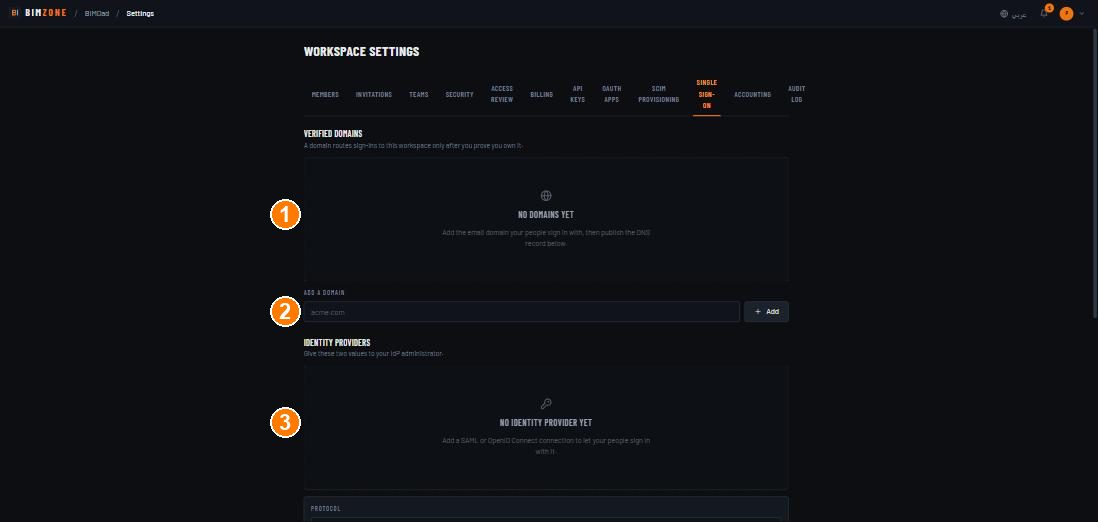
/workspace/settings. - Work through the tabs in this order on a new workspace: Invitations (bring people in) → Teams (group them) → Security (decide on MFA) → Single sign-on (if you have an IdP) → API keys (only when a BI tool or gateway needs one).
- Use Access review periodically and Attest review when done; it is the evidence trail for audits.
Controls
- Members — every member with their last-seen time; role select (Admin / Member); terminate sessions; remove. The owner is badged OWNER.
- Invitations — Quick paste (emails separated by comma, space or newline) or CSV import; Workspace role (Member / Admin); Add to project (optional) with a project picker; Send invitations. Below: every invitation with its state (ACCEPTED or pending), Copy link (hand the invitation over by any channel when email is not configured) and a revoke control for pending ones. There is no resend — revoke and invite again.
- Teams — Team name + Create team; tick members to add them; assign whole teams to projects in one action. "Group members into named teams, then assign whole teams to projects."
- Security — Enforce two-factor authentication (every member must set up TOTP; members without it are routed to enrolment at next sign-in) · notes on what is always on: session termination from Members, audit logging with IP and user agent, lockout after repeated failures, breach screening.
- Access review — every member with role and MFA state (NO MFA badge), pending invitations, API keys; Export CSV; Attest review records who reviewed and when ("Last attested N days ago").
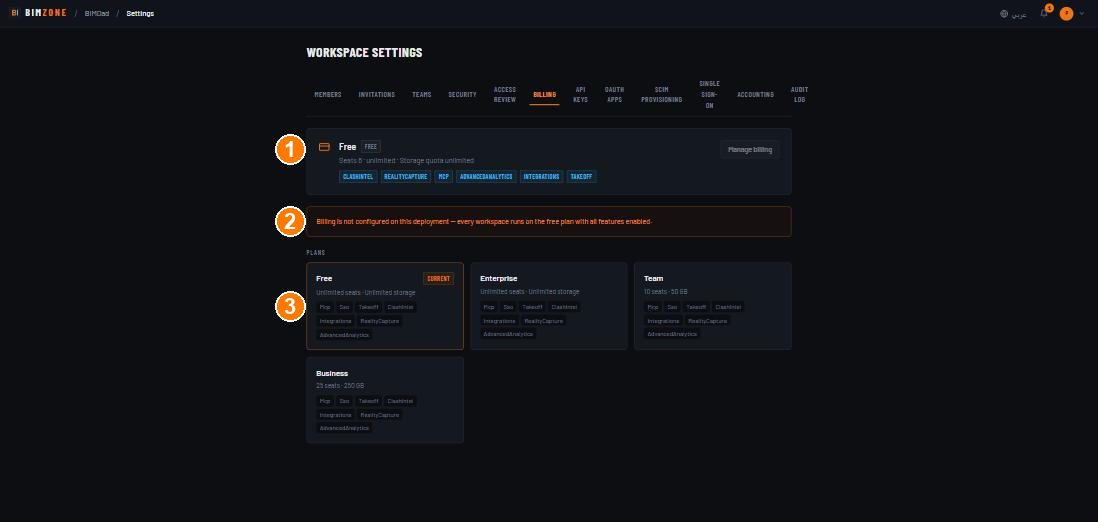
- Billing — current plan card (seat and storage usage, feature flags such as CLASHINTEL, REALITYCAPTURE, MCP, ADVANCEDANALYTICS, INTEGRATIONS, TAKEOFF), Manage billing, and the plan table (Free / Team / Business / Enterprise). On a deployment without Stripe configured the page says so: "Billing is not configured on this deployment — every workspace runs on the free plan with all features enabled." See Billing and grace below.
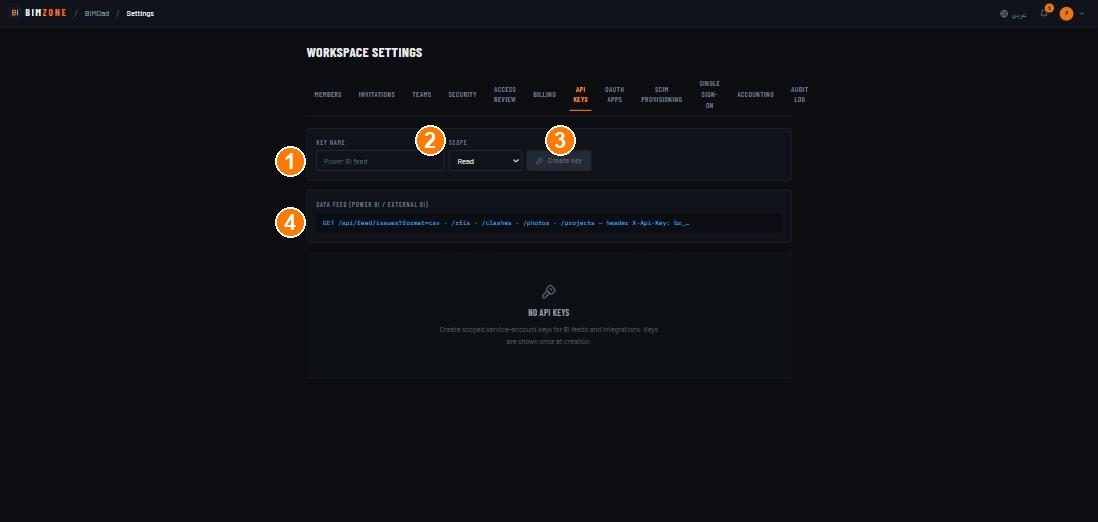
- API keys — Key name, Scope (Read / Write / Admin), Create key. The key is shown
once. The panel prints the BI feed URLs (
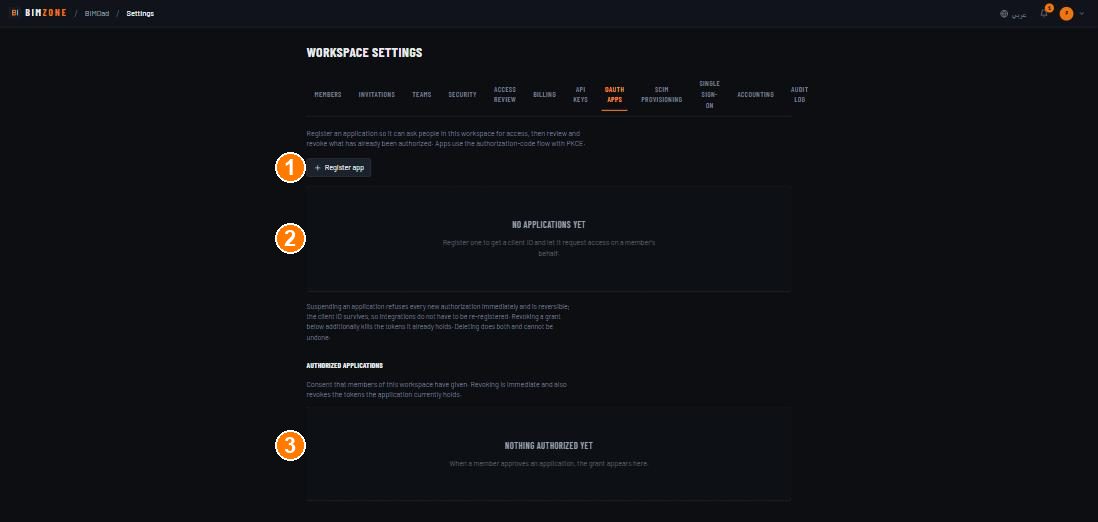
GET /api/feed/issues?format=csv,/rfis,/clashes,/photos,/projects, headerX-Api-Key: bz_…). - OAuth apps — Register app (name, redirect URIs, allowed scopes, confidential or public); the client secret is shown once; Suspend (refuses new authorisations, reversible), Revoke a grant (also kills its tokens), Delete (both, irreversible). Authorized applications lists the consent members have given.
- SCIM provisioning — New token (name it after the identity provider) → Create token;
point the IdP at
/scim/v2with the token as bearer. Deactivating a user in the IdP deactivates them here. - Single sign-on — Verified domains (add a domain, publish the DNS record shown, verify) · Identity providers (Protocol SAML 2.0 / OpenID Connect, Display name, Login handle, IdP sign-in URL, IdP signing certificate — stored encrypted and never shown again; for OIDC: issuer, client ID, client secret) · Sign-in policy (Require single sign-on; Disable password sign-in — passkeys still work).
- Accounting — connect an accounting system (Odoo available; QuickBooks Online, Xero, Zoho Books, Dynamics 365, Oracle ERP, SAP S/4HANA and Sage are listed as pending adapters). "BimZone works fully without one."
- Audit log — Time · User · Action · Entity · IP for every security-relevant and data-changing
action in the workspace (for example
issue.created,oauth.app_registered,workspace.invitations_sent,integrations.synced,takeoff.library.create,project.updated).
What happens after
Invitations send an email (or give you a link to copy). Role changes take effect on the member's next request. Enforcing MFA routes everyone without it through enrolment at their next sign-in. Creating an API key or SCIM token shows the secret exactly once — copy it before closing the panel.
Connections to other modules
Members must exist in the workspace before they can be added to a project (Project settings › Members & roles). API keys feed Analytics exports and the sensor ingest endpoint. OAuth apps and SCIM/SSO are described in Integrations.
Data in / data out
In: names, emails, roles, IdP metadata, key names. Out: Access review › Export CSV, the audit log (readable in the UI), BI feeds via API keys.
Permissions and approval
Owner: everything. Admin: everything except owner-only actions (billing, MFA enforcement, SCIM tokens). Member: no access to this screen. No maker-checker applies here; the audit log is the control.
Billing and grace
The rule the platform applies, in plain terms:
- An active or trialing subscription grants its plan.
- A subscription that is past due keeps its plan until the paid period ends (the grace window); after that the workspace falls back to the free default.
- With no subscription at all, a plan bound to the workspace applies; with none, the free plan.
- The free plan enables every feature with unlimited seats and storage.
The subscription state is written only by the payment provider's webhook; nothing in the UI changes it directly.
Common mistakes and troubleshooting
- Invited someone but they cannot open the project — the invitation adds them to the workspace; add them to the project under Project settings › Members & roles, or use the Add to project picker when inviting.
- "Key shown once" and you closed it — create a new key and delete the old one; secrets are not recoverable by design.
- Cannot remove the owner — the last owner is protected; there is no ownership-transfer control in the UI today.
- SSO users cannot sign in — the domain must be verified (DNS record) and the IdP certificate valid; test with one user before enabling Require single sign-on.
Limitations and integration prerequisites
- Billing needs Stripe credentials on the server; without them every workspace is on the free plan.
- SCIM and SSO need an identity provider you administer; the accounting adapters need vendor credentials (see Integrations).
Where to go next
Projects
What it does
A project is the unit of work: it holds the models, the registers (issues, RFIs, WIRs, MARs, change orders, incidents, inspections, documents, sheets), the programme, the cost data and the integrations. Everything you see in the rail belongs to the project you opened.
Who uses it and why
Workspace admins create projects; project admins configure them; everyone else works inside them. The Dashboard gives management a portfolio view across projects.
Prerequisites
Workspace membership. To create a project: workspace admin or owner.
Step-by-step
- On the Dashboard press New project. Fill Project name (for example "Riyadh Metro — Station C4"), Code, Site address, a description ("Scope, phase, delivery method…") and Units (Metric / Imperial). Create project.
- Open it. The Overview tab shows the project card (Status, Units, Address, Members), the Team avatars, the Plan thumbnail and the Offline copy card.
- Settings › Members & roles: pick a workspace member in Select member…, choose a Role (Admin / Upload Engineer / Viewer / Inspector), press Add. Repeat for the team.
- Settings › General: confirm name, code, status, address, units; optionally paste a Slack / Teams webhook so issue, RFI and clash-run notifications post to a channel.
- Settings › Georeferencing: press Prefill from IfcSite after your first model is uploaded (or type the origin latitude/longitude); this is what makes Map, GIS layers and coordinate markers line up.
- Upload the first model — Models & viewer.
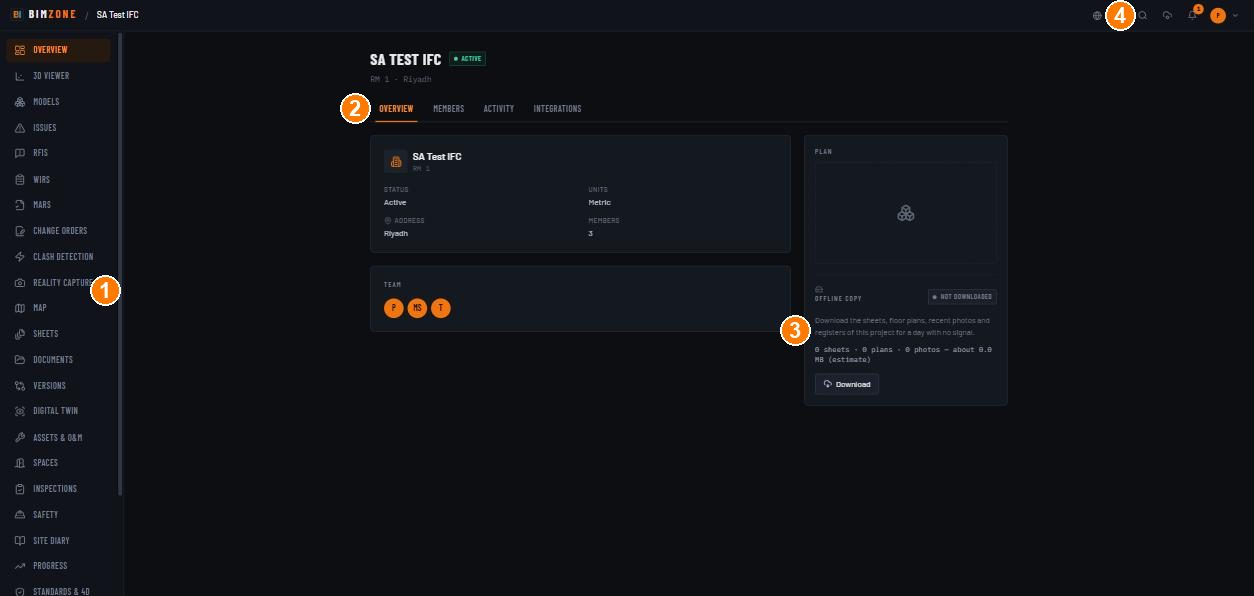
1 · project rail · 2 · Overview / Members / Activity / Integrations tabs · 3 · Offline copy · 4 · search, cloud activity, notifications
Controls
- Dashboard: workspace KPI tiles (Projects, Active, Open issues, Models, Open issues (all), Critical open, RFIs awaiting answer, Clashes unresolved) · Portfolio table (Project · Open issues · Critical · RFIs open · Clashes unresolved · Observed progress) · CSV / Excel export of the portfolio · tabs Active / Closeout / Archived · search "Search name, code or address…" · sort Last updated / Name (A–Z) · Grid view / List view · project cards (models count, open issues, last update).
- Overview tab: Status · Units · Address · Members · Team · Plan · Offline copy ("Download the sheets, floor plans, recent photos and registers of this project for a day with no signal." — shows the estimate, Download, and a NOT DOWNLOADED / downloaded badge).
- Members tab: read-only list (Name · Email · Role). Management is in Settings.
- Activity tab: the project's audit feed — one row per action (Issue Created, Sheet Uploaded, Integrations Synced, Copilot Write Confirmed, Custom Field Deleted, Schedule Imported, Progress Element Override…) with actor and time.
- Integrations tab: see Integrations.
- Settings (project): Members & roles · Search sets · Share links · Georeferencing · GIS layers · Custom fields · Issue templates · Automation · CDE (ISO 19650) · Folder access · Scheduled reports · General. Each is explained in the module that uses it; the two generic ones:
- Share links — Password (optional; "Leave empty for open access"), Expires in days (optional), Create link: "Create read-only public links to the project — optional password and expiry, revocable anytime." A share link opens a read-only viewer without an account.
- General — Project name, Code, Status (Active / Closeout — O&M record / Archived), Address, Units, Slack / Teams webhook, Save changes; Rebuild the search index ("a large import, a restored backup, a spell with the worker down — leaves it answering from a stale index, which shows up as missing results rather than an error").
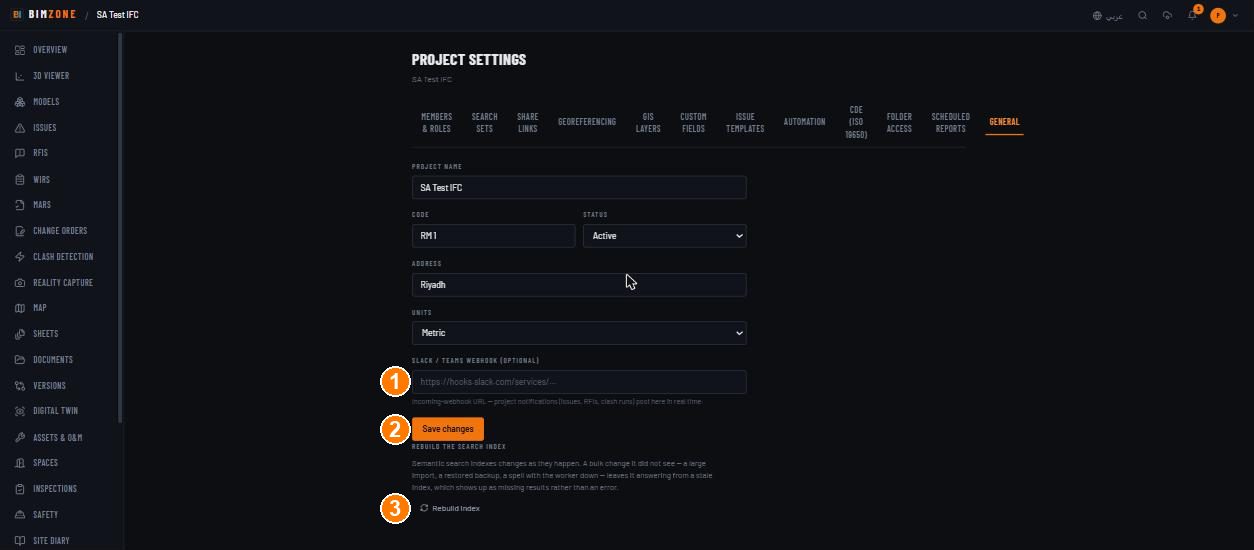
1 · name, code, status · 2 · address, units, chat webhook · 3 · Save changes / Rebuild the search index
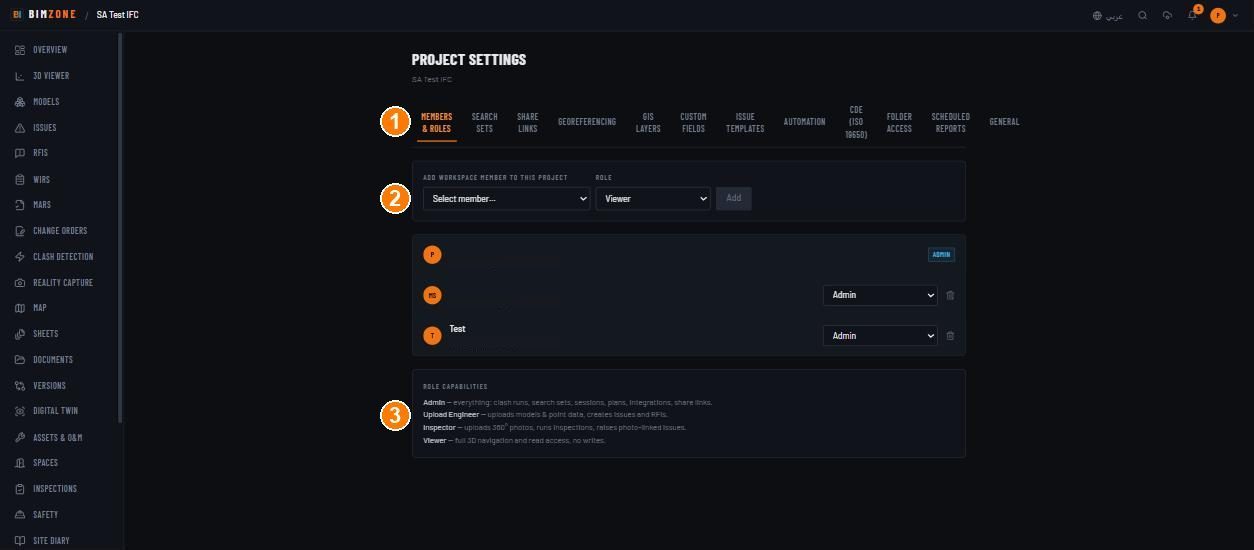
1 · settings tabs · 2 · add a workspace member with a role · 3 · what each role may do
What happens after
A new project is Active and empty. Moving it to Closeout — O&M record keeps it fully readable for handover; Archived hides it from the Active tab. Adding a member sends them a notification and the project appears on their dashboard.
Connections to other modules
Every module is scoped to the project. Georeferencing feeds the Map, the viewer's coordinate marker and GIS overlays. Members & roles gates every write in every module. The Slack/Teams webhook receives issue, RFI and clash-run events.
Data in / data out
In: project metadata, members, georeference, webhook URL. Out: portfolio CSV/Excel from the dashboard; per-project exports live in each module and in Reports & analytics.
Permissions and approval
| Project role | Can |
|---|---|
| Admin | everything: clash runs, search sets, sessions, plans, integrations, share links, settings, members |
| Upload Engineer | uploads models & point data, creates issues and RFIs (and documents, schedules; sheets are Admin) |
| Inspector | uploads 360° photos, runs inspections, raises photo-linked issues, writes the site diary |
| Viewer | full 3D navigation and read access, no writes |
Approval and maker-checker rules apply per register and are listed in each module page and summarised in Roles › Approval and segregation of duties.
Common mistakes and troubleshooting
- A member cannot see the project — they are in the workspace but not in the project; add them in Settings › Members & roles.
- Map is empty / coordinate marker says "No georef" — set the origin in Settings › Georeferencing (Prefill from IfcSite works when the IFC carries RefLatitude/RefLongitude).
- Search finds nothing after a bulk import or restore — Settings › General › Rebuild index.
- Offline copy shows 0 sheets · 0 plans — nothing has been uploaded yet; the estimate is honest.
Limitations and integration prerequisites
- Project templates and cloning are not available; each project is configured by hand.
- Slack/Teams posting needs an incoming-webhook URL from that tool.
Where to go next
Models & viewer — upload the first IFC.