CDE, documents & sheets
The project's common data environment under ISO 19650: controlled documents that move WIP → Shared → Published behind a review, drawing sheets you can pin, mark up, measure and compare, formal transmittals with acknowledgement, and version-comparison sessions for the model set.
Related: Models & viewer · Issues, RFIs & clashes · Roles › Document Controller · Glossary
Documents (CDE register)
What it does
A document register with an ISO 19650 state machine (WIP → Shared → Published → Archived), a review-gated advance, per-folder access control, suitability codes and revisions, a version chain, soft delete with a 30-day trash, and an audit trail. Models carry the same CDE state (the CDE badge on the Models page).
Who uses it and why
Document controllers own it; every discipline uploads to it and reads from it. It is the answer to "which revision is the one we are building from, and who approved it".
Prerequisites
- Role Admin or Upload Engineer to upload and to move a document to Shared.
- Admin to archive, to configure Settings › CDE (ISO 19650) and Folder access.
- To publish: a review round must have approved the document (see below).
Step-by-step
- Settings › CDE (ISO 19650) (admin, once): read the Container naming pattern
(
project - originator - volume - level - type - role - number), decide whether to tick Enforce naming on upload ("Block uploads whose filename does not match the pattern above."), and trim Allowed suitability codes (S0 S1 S2 S3 S4 S6 S7 A1 A2 A3 A4 A5 B1 B2 B3 B4 B5 — leave all selected for the full ISO set). Save CDE configuration. - Rail › Documents › Register tab › Upload › choose the file (up to 100 MB). It appears in WIP with you as uploader ("Document uploaded — it starts in WIP.").
- Open the row › Review & markup › Open a review round: choose the Reviewer (a project member other than yourself) and an optional Response due. Open round.
- The reviewer opens the same panel, reads the markup and redlines on the revision chain, adds a Review comment, and presses Approve or Reject. "A document cannot be published while a round is open, or after one has rejected it."
- Advance the state with the buttons on the row: Share for coordination (Upload Engineer or Admin, not the uploader) → later Publish (after approval; not the uploader) → eventually Archive (Admin). The row only offers the transitions the server allows for you.
- Set Suitability & revision on the document before issuing it in a transmittal — the transmittal snapshots them from the document.
- Mistakes go to Trash (30-day retention) and can be restored with Restore.
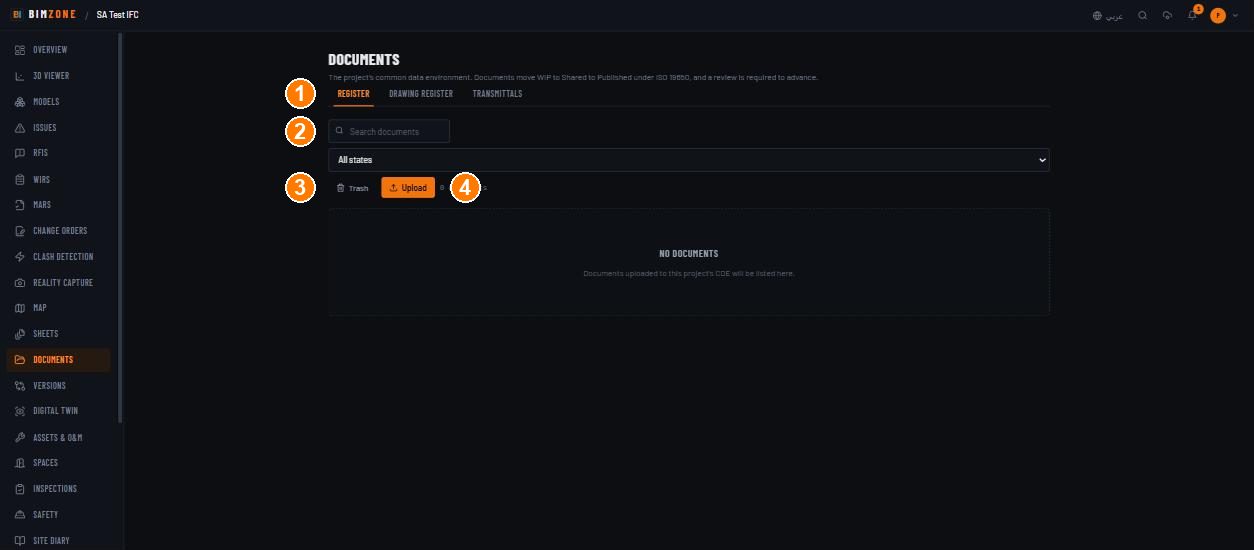
1 · Register / Drawing register / Transmittals tabs · 2 · search and state filter · 3 · Trash toggle · 4 · Upload (Admin and Upload Engineer only)
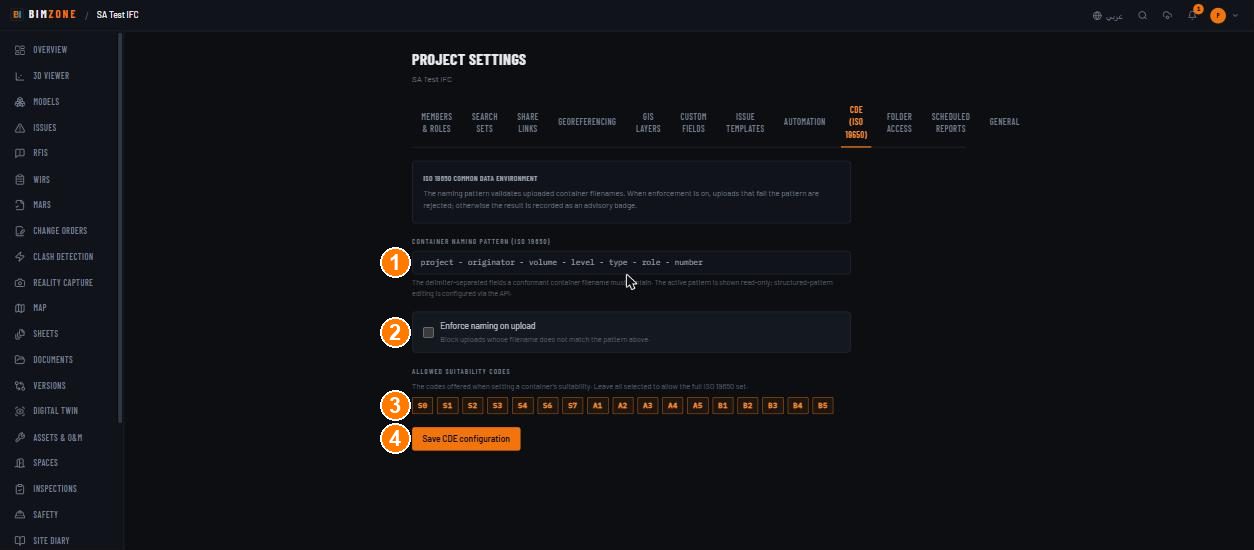
1 · container naming pattern · 2 · Enforce naming on upload · 3 · allowed suitability codes · 4 · Save CDE configuration
Controls
- Register tab: search "Search documents" · All states (WIP · Shared · Published · Archived)
· Trash toggle ("Viewing trash") · Upload · "N documents" · table Document · Revision ·
CDE · Folder · Uploaded by · Uploaded (or Deleted in the trash) · per row: the server's
transition buttons (labelled with the action, e.g. Share for coordination, Archive, with a
"Requires
" hint when it is not yours to press), Review & markup, open the file, Move to trash · Restore in the trash view. - Review & markup drawer: Open a review round (Reviewer, Response due, Open round) · rounds list (Round n · Open / Approved / Rejected / Closed · Due date · Pending) · Approve / Reject / Close round · Review comment + Add comment · Markup & redlines ("No markup on this revision chain." when none).
- Settings › Folder access (admin): type a Folder path ("Paths are matched case-insensitively.") to see and edit who can read and write that folder. The register hides documents you cannot read; upload and state changes need write access on the folder.
- Settings › CDE (ISO 19650): see step 1.
What happens after
Every transition is recorded with actor, time and note and shown in the model/document history. A document in Shared is visible to the whole project for coordination; Published is the issued state transmittals draw from. Folder ACL changes take effect immediately. Trash purges after 30 days.
Connections to other modules
Models (same CDE state machine and badge), Sheets (a drawing must be linked to a controlled document
to be issued), Transmittals (issue from Published/Shared documents), Element panel (Documents
chip on an element), Automation (document.published trigger), Integrations (Planon/ACC document
links where configured).
Data in / data out
In: files (any type, 100 MB max), review comments, folder ACLs. Out: the file itself (open/download from the row); transmittals carry a frozen manifest; nothing else is exported from the register.
Permissions and approval
- Upload: Admin, Upload Engineer (and write access on the folder).
- Share for coordination and Publish: a user other than the uploader (maker-checker); Publish additionally needs an approved review round and no open or rejected round.
- Review decisions (Approve / Reject): a user other than the uploader.
- Move to trash and Restore: Admin.
- Archive, folder ACLs, CDE configuration: Admin.
- Models: Publish on a model's CDE state also requires someone other than its uploader.
Common mistakes and troubleshooting
- "Requires upload_engineer" / greyed transition — your role cannot make that move; ask an Upload Engineer or Admin. If you are one and it is still refused, you uploaded the document — segregation of duties needs a second person.
- Cannot publish — open the review drawer: a round is still open, or the last round rejected. Close/approve, then publish.
- Upload rejected for its name — naming enforcement is on; rename to the container pattern or ask an admin to relax it.
- "Suitability code Sx is not permitted on this project" — the code is not in the allowed set.
- A document is missing for a colleague — folder ACL; check Settings › Folder access.
- Restored a document but the drawing register still says never issued — issue it from the Drawing register; restoring does not re-issue.
Limitations and integration prerequisites
- Naming-pattern editing is via the API only; the UI shows the active pattern read-only.
- No online document preview beyond what the browser renders natively; sheets have their own viewer.
- 100 MB per document.
Where to go next
Sheets (drawings) · Transmittals.
Sheets (drawings)
What it does
2D drawing sheets (PDF, image, DWG/DXF) rasterised on upload and viewed in a sheet viewer where you pin issues, draw markup, calibrate the scale, take measurements for quantity takeoff, compare two revisions, and jump into the 3D model.
Who uses it and why
Site engineers and inspectors work from sheets; coordinators pin issues on them; QS measure from them; document controllers keep the Drawing register (which sheet, which revision, issued when).
Prerequisites
Role Admin to upload and calibrate; Admin or Upload Engineer to pin issues; Inspectors mark up
only. A DWG/DXF upload needs the DWG converter installed on the server (an operator setting,
DWG_CONVERTER_PATH, set in Dokploy);
PDF and images need nothing.
Step-by-step
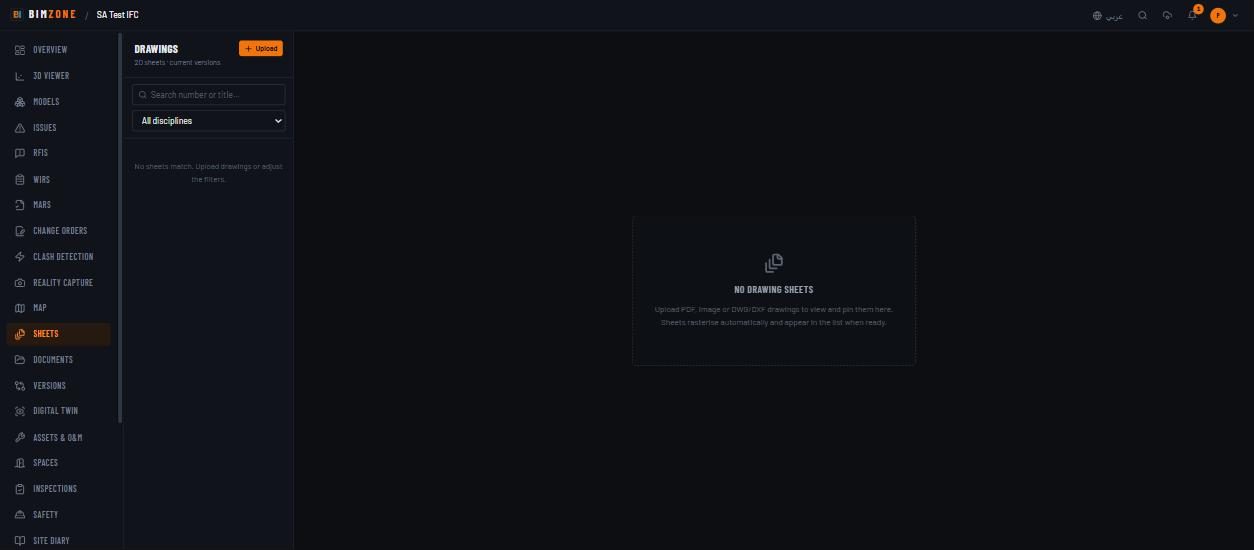
- Rail › Sheets › Upload › Drawing file, Sheet number (required), Sheet title, Discipline, optional Sheet set. The sheet rasterises in the background ("Sheets rasterise automatically and appear in the list when ready.").
- Open the sheet. Switch modes with the toolbar: View · Pin issue ("Click the drawing to place an issue pin") · Markup (tools Arrow · Box · Cloud · Text; strokes are listed beside the sheet and can be relabelled, recoloured or deleted from that list) · Calibrate (admin: set the sheet's scale so pins project into 3D and measurements are in metres) · Measure (Area · Length · Count with a Label, Classification such as IfcSlab and a Quantity key; Save measurement — "Calibrate the sheet's scale before measuring it.") · Versions.
- Upload a new revision of the same drawing number: it joins the sheet's version chain. Compare revisions shows Added / Removed / Unchanged linework ("Linework that moved appears twice — removed where it was, added where it now is.").
- Open the 3D viewer from a pin to fly to the linked element ("This pin has no linked 3D element, and the sheet isn't calibrated for projection." explains the two things that make that possible).
Controls
- List: search "Search number or title…" · All disciplines · Upload · "N sheets · current versions".
- Viewer modes: View · Pin issue · Markup (Arrow / Box / Cloud / Text) · Calibrate · Measure · Versions; Compare revisions; Open the 3D viewer; markup list with rename / recolour / delete.
- Takeoff measurements panel: kind (Area / Length / Count), points hint, Label, Classification ("Matches a rate-library group so this prices with model quantities"), Quantity key, Save measurement, Clear points, Undo last point.
- Documents › Drawing register tab: search "Search drawing number or title" · All disciplines · All drawings / Issued / Never issued · table Drawing · Title · Discipline · Rev · Suitability · Purpose of issue · Last issued · per drawing: Open drawing, Open in 3D, Issue…, Controlled document (Not linked / Linked — "This drawing is not linked to a controlled document, so it cannot be issued. Upload it to the document register first."), Issue history, Coordination (issues pinned to this drawing).
What happens after
Sheets are counted in the project's Offline copy. Pins create issues with the sheet as context; measurements saved with a classification price against the rate library in Takeoff & Cost. Markup saved while offline syncs when the connection returns.
Connections to other modules
Issues (pins), Viewer (Open in 3D; the element panel's Sheets chip lists the sheets an element appears on), Takeoff & Cost (sheet measurements), Documents (controlled-document link, Drawing register, transmittals), Reality Capture (floor plans are a separate upload there).
Data in / data out
In: PDF / PNG / JPG / DWG / DXF. Out: the drawing issue sheet (Drawing register) and transmittal cover sheets; sheet measurements flow into the BOQ.
Permissions and approval
Upload, calibrate, delete: Admin. Pins (issues raised from a sheet): Admin, Upload Engineer. Markup: Admin, Upload Engineer, Inspector. Viewers read only. Issuing a drawing is a transmittal (below) and follows its rules.
Common mistakes and troubleshooting
- Sheet never becomes ready — DWG/DXF without the server converter ("DWG converter not installed"); upload a PDF instead or ask the operator.
- Measurements refused — calibrate the sheet first.
- Compare says "These are two different drawings, not two revisions of one." — give the new upload the same drawing number so it joins the chain.
- Compare aligned by width — neither revision is calibrated; calibrate both for a scale-accurate diff.
- Pin will not open in 3D — no linked element and no calibration.
Limitations and integration prerequisites
- DWG/DXF conversion needs
DWG_CONVERTER_PATHon the server. - Comparison is raster-based (pixel diff), not vector.
Where to go next
Transmittals
What it does
Formal ISO 19650 issue of documents/drawings to named recipients: an immutable manifest (revision and suitability snapshotted from the document, hashed), one acknowledgement link per recipient, a cover sheet, and a register of what was sent, to whom, and when it was acknowledged.
Who uses it and why
Document controllers. It is the evidence that a consultant or contractor received revision P03 on a date — the thing a claim turns on.
Prerequisites
The drawing/document must be linked to a controlled document in the register and be in Shared or Published. Role Admin or Upload Engineer.
Step-by-step
- Documents › Drawing register › open the drawing › Issue… (one drawing per transmittal from the register; the dialog reports "Issuing 1 drawing").
- In Issue a transmittal: Purpose of issue (default "For information" — "It is recorded on the transmittal and shown in the register."), Recipients ("Email addresses, separated by commas. Each recipient gets their own acknowledgement link."), optional Distribution groups, Note. Issue. The toast gives the reference ("TR-001 issued.").
- Recipients receive the link (or you share it) and acknowledge; the register shows "Recipients — n of N acknowledged".
- Documents › Transmittals tab: filter by recipient email (full address), see Reference · Subject · Documents · Recipients · Acknowledged · Issued; open one for the Cover sheet, the manifest hash and the per-recipient acknowledgement state ("Awaiting acknowledgement").
Controls
Issue… (drawing register) · Issue a transmittal dialog (Purpose of issue, Recipients, Distribution groups, Note, Issue) · Transmittals tab (search by recipient email, register table, transmittal page with Cover sheet, manifest hash, recipients).
What happens after
The manifest is frozen (revision/suitability are copied from the document at issue time and hashed); later edits to the document do not change what was issued. The drawing register's Last issued and Issue history update. Acknowledgements are recorded with time.
Connections to other modules
Documents (source records), Sheets (Drawing register), Reports (cover sheet PDF).
Data in / data out
In: recipients, purpose, note. Out: cover sheet PDF, acknowledgement links (external, no account needed), the register.
Permissions and approval
Issue: Admin, Upload Engineer. Acknowledge: the recipient via their link. No maker-checker (the review round before publishing is the control).
Common mistakes and troubleshooting
- "A purpose of issue is required." / "Add at least one recipient or distribution group." — fill them.
- "Not valid email addresses: …" — fix the list.
- Drawing cannot be issued — link it to a controlled document first (Drawing register › Controlled document).
- Wrong revision on the transmittal — set Suitability & revision on the document before issuing; the transmittal is immutable afterwards, so issue again.
Limitations and integration prerequisites
Email delivery of acknowledgement links depends on the deployment's SMTP; the links can be copied.
Where to go next
Versions (model comparison)
What it does
Named sessions — snapshots of the whole model set ("SD Phase", "Construction Set 01") — compared across six layers: geometry, metadata, classification, quantities, coordination, construction.
Who uses it and why
BIM managers checking what changed between design issues; QS checking quantity deltas; coordinators seeing new clashes in the window.
Prerequisites
At least two sessions. Role Admin to create sessions.
Step-by-step
- Rail › Versions › New session › name it. Do this at each milestone.
- Pick Session A (baseline) and Session B (revision) and start the comparison ("Computing six-layer comparison…").
- Read the layers: Added / Modified / Removed elements, Property changes, Classification changes (type or storey reassignments), Quantity deltas, coordination (New clashes in window, Clashes resolved, Issues created, RFIs created), construction (Photos captured).
- Export the PDF (PDF language EN / AR / both).
Controls
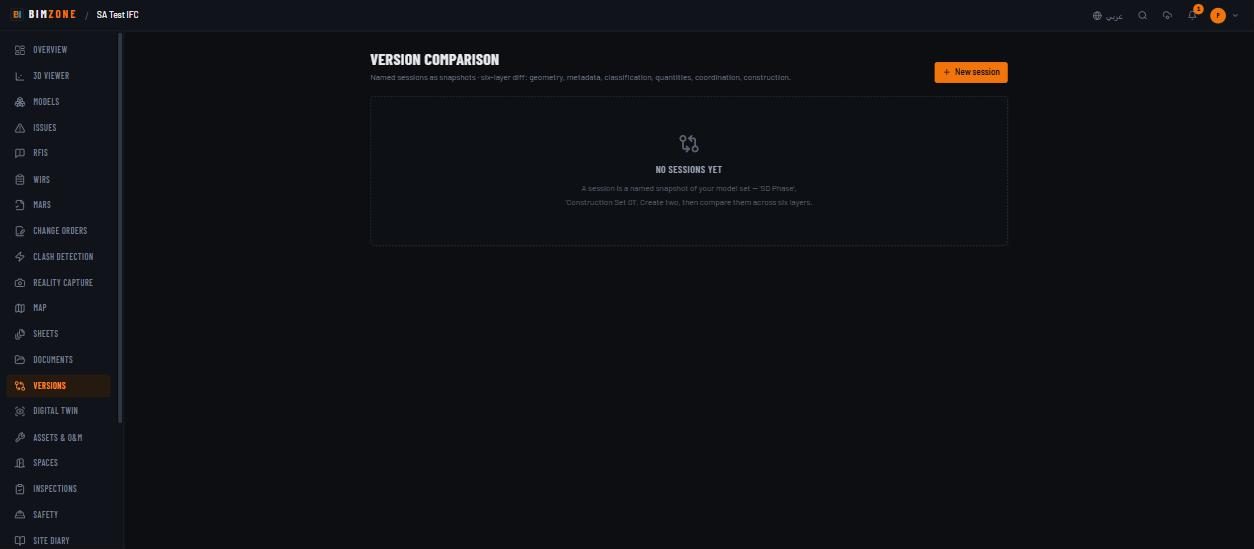
New session · session list · Session A / Session B pickers · the six-layer results · PDF language and export.
What happens after
Sessions are immutable snapshots; comparisons are computed on demand and cached.
Connections to other modules
Models (version groups), Clash Detection, Issues, RFIs, Reality Capture, Takeoff (quantities).
Data in / data out
In: nothing beyond the session name. Out: the comparison PDF.
Permissions and approval
Create sessions and run comparisons: Admin. Read: everyone.
Common mistakes and troubleshooting
- "No sessions yet" — create two before comparing.
- Empty geometry layer — both sessions contain the same model versions; upload the new revision first, then create the second session.
Limitations and integration prerequisites
Element identity across versions relies on stable IFC GUIDs from the authoring tool.