4D & 5D
Model checking (IDS), the programme (4D) and the money (5D): run an information-delivery ruleset, import a P6 or MS Project schedule, give it logic, link activities to model elements, play the build in the viewer, read earned value and Monte-Carlo risk, take off quantities from the model, price them from a versioned rate library, and book actual costs.
Related: Models & viewer · Field › Progress · Roles › Commercial / Cost · Glossary
IDS conformance checks
What it does
Runs a buildingSMART IDS ruleset (.ids / .xml) against the project's current models and
reports, per specification rule, how many applicable elements pass and fail, with the failing
elements listed by GUID. Failures can be shown red in the 3D viewer or raised as issues.
Who uses it and why
BIM/coordination leads and information managers checking a delivery against an employer's information requirements (naming, classification, property sets, materials) before it is accepted.
Prerequisites
- At least one model in ready state (Models).
- An IDS file (from the client's EIR, or authored in any IDS editor).
- Project role upload_engineer or admin to upload and run; anyone can read results.
Step-by-step
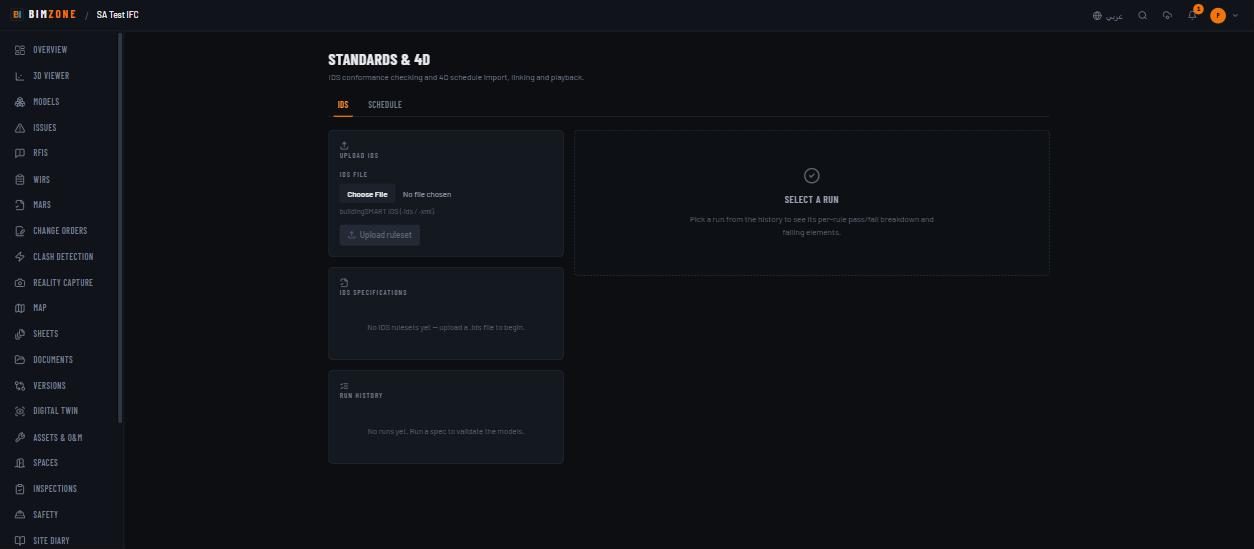
- Rail › Standards & 4D › IDS tab. The page header reads "IDS conformance checking and 4D schedule import, linking and playback."
- Upload IDS › IDS file ("buildingSMART IDS (.ids / .xml).") › Upload ruleset. The
specification appears under IDS specifications as "N specs ·
". - Press Run on a specification. The run appears under Run history with status
running; the page polls every 4 s ("This refreshes automatically when the run completes."). - Select the run. The Validation report shows Applicable / Pass / Fail totals and a pass/fail bar per rule; Failing elements lists Element GUID and Failed requirements.
- Show in viewer opens the 3D viewer with the failing elements coloured red.
- Raise issues creates one issue per failing element, titled "IDS non-compliance:
", source ids, attached to that element — deduplicated per (rule, element), so re-running and pressing it again never files the same element twice. Up to 100 issues per press.
Controls
Upload IDS (IDS file · Upload ruleset) · IDS specifications (per spec: name, spec count, IFC
version, Run) · Run history (status badge running / done / failed; click to select) ·
Validation report (Applicable · Pass · Fail; per-rule bars) · Failing elements (Show in
viewer · Raise issues). The CSV of a run is available at
GET /api/projects/:projectId/ids/runs/:runId/export.csv (API only — there is no button yet;
capped at IDS_EXPORT_ROW_CAP, default 50,000 rows, above which it points at the paginated
/failures route). Failing elements shows the first 100 failures.
What happens after
The run is executed by the worker, so it survives a page refresh; results are stored per run and per rule, and every run stays in the history. Issues raised from a run behave like any other issue (assignable, BCF-exportable, visible in the viewer's Issues panel).
Connections to other modules
- Issues — raised failures (source
ids). - 3D viewer — Show in viewer highlight.
- Models — a run validates the current version of every ready model (the run stores that version manifest, so an old run stays reproducible).
Data in / data out
In: an IDS 1.0 XML file; the models' properties, classifications and materials. Out: per-run pass/fail counts and failing GUIDs (UI and CSV); optional issues.
Permissions and approval
| Action | Role |
|---|---|
| Read specifications, runs, reports, CSV | any project member |
| Upload a ruleset, run it, raise issues | upload_engineer or admin |
| Delete a specification | admin (API DELETE /api/projects/:projectId/ids/:specId; no button in the UI) |
No approval step — a run is a report, not a decision.
Common mistakes and troubleshooting
- "No applicable elements in the validated models." — the rule's applicability (IFC class, classification, property) matches nothing in the models; check the entity names in the IDS against the model's actual classes.
- Run stays
running— the worker is down or busy; see the Cloud activity panel and the monitoring runbook. - Run
failed— the message under Run failed names the cause (usually an IDS the parser rejects). Validate the file in an IDS editor and re-upload. - Raise issues created fewer issues than failures — expected: rules that could not be checked
because the model has no relation index, and spec-level
(cardinality:…)rows, are counted as failures in the report but deliberately never become issues. - Show in viewer opens the viewer but highlights nothing — the only failures are spec-level
(cardinality:…)rows, which have no element behind them.
Limitations and integration prerequisites
- IDS 1.0 facets: entity, attribute, classification, property, material, partOf. A regular-expression pattern that is invalid or catastrophic (ReDoS) is compiled through a safe guard and degrades to never-match: in a requirement facet its elements read as fail, in an applicability facet they simply fall out of scope; the run does not crash.
- No scheduling — runs are started by hand (or via the API from an automation of your own).
- No compare-between-runs view; export two CSVs.
Where to go next
Issues to work the raised failures · 4D schedule on the neighbouring tab.
4D schedule
What it does
Imports a Primavera P6 .xer or MS Project .xml programme, shows the WBS task tree, computes the
critical path (CPM) from the dependency network, plays construction by date in the viewer, computes
earned value (SPI/CPI/SV/CV/PV/EV/AC/EAC), runs a 2,000-iteration Monte-Carlo schedule-risk
simulation, and draws the planned cost curve.
Who uses it and why
Planners (import, dependencies, links, status dates), project managers (playback, EVM, risk), QS (cost curve, actual costs — see 5D cost).
Prerequisites
Role Admin or Upload Engineer to import and edit; a READY model for linking; a programme file
exported from P6 (.xer) or MS Project (.xml).
Step-by-step
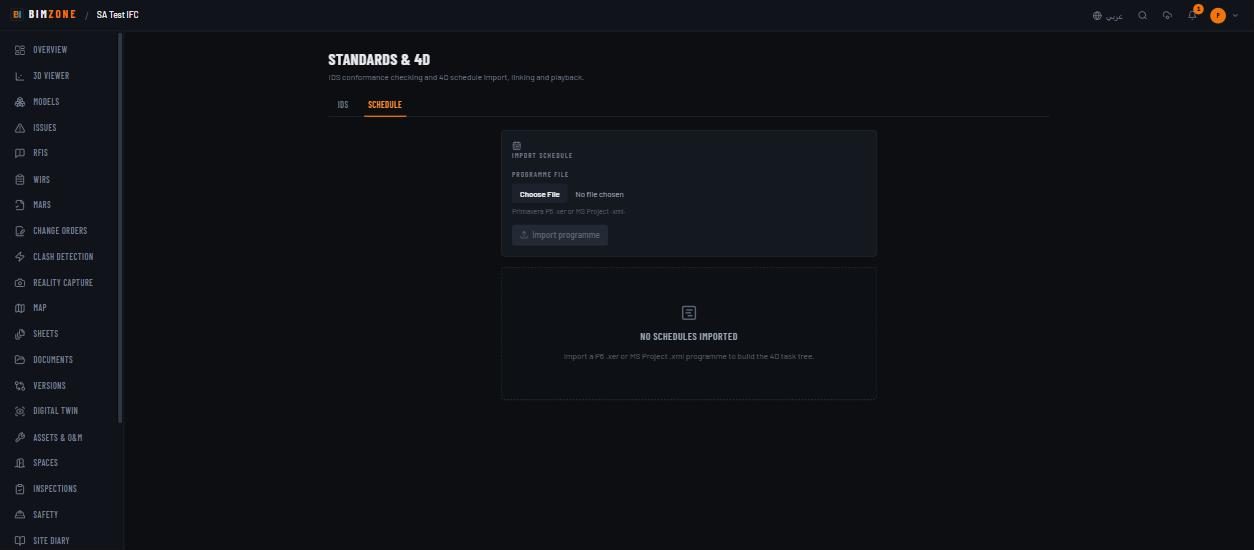
- Rail › Standards & 4D › Schedule tab › Programme file › Import programme. The
schedule appears in the Schedule select as "
(N tasks)".
- Set the Status date (or Roll to today) — EVM and variance are computed against it.
- Dependencies: imported programmes bring their own logic; add or correct links with Predecessor, Type (FS · SS · FF · SF), Successor, Lag, + Add. "An empty network means every activity reads as critical with zero float."
- Link activities to the model: WBS prefix ("Matches activities whose WBS code starts with this.") + IFC type ("The element class those activities build.") › Preview › Apply. Or link one task at a time in the WBS task tree; remove links from the list under the link panel.
- Record progress in the WBS task tree: per task the planned bar, actual %, start/end date inputs and the phase (Install · Demolish · Temporary).
- Play it: the scrubber on this page or the viewer's 4D timeline (rewind/play, 1d/s · 7d/s · 30d/s · 90d/s, PLANNED / ACTUAL, date, "N% through programme"). Elements not yet built by the cursor date are hidden; a Demolish task fades its elements out and removes them; Temporary works are drawn at reduced opacity while erected and struck afterwards.
- Read Critical-path Gantt (duration, start → finish; critical path in rust-orange, non-critical in cyan, total float dotted), Earned value · 5D cost, Schedule risk · Monte-Carlo (2,000 runs) (P50 / P80 / P90 finish, Confidence in baseline "P(finish ≤ baseline)", P80 contingency) and Risk drivers (criticality index) — the activities most often on the critical path.
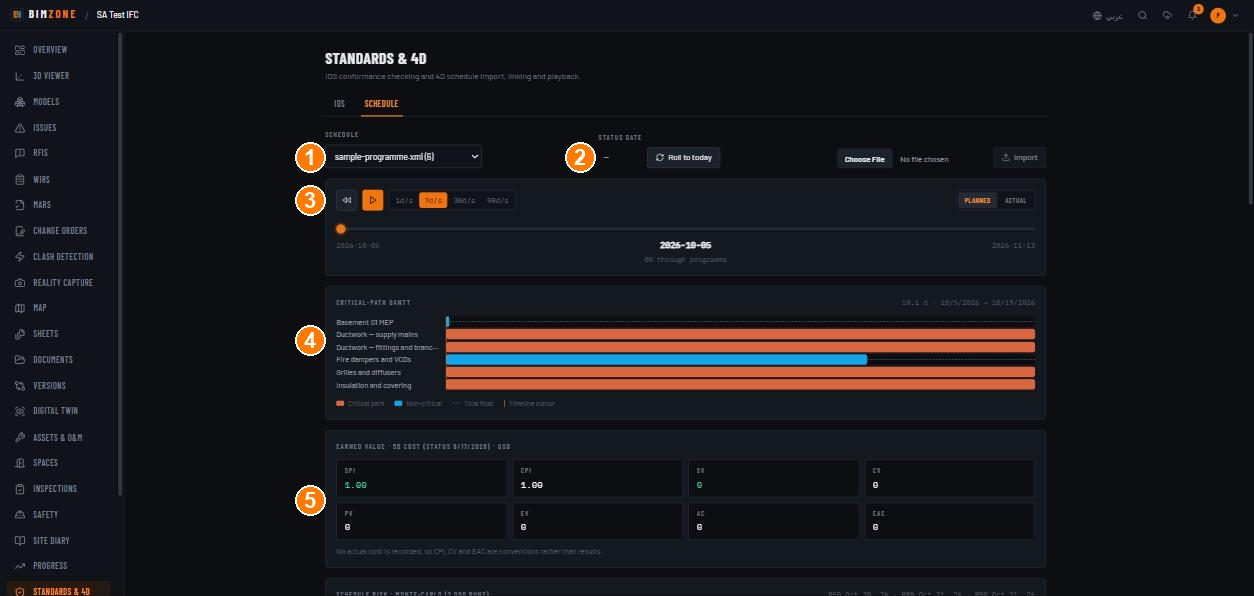
1 · Schedule select · 2 · Status date / Roll to today / Import · 3 · playback speeds and PLANNED / ACTUAL · 4 · Critical-path Gantt · 5 · Earned value · 5D cost
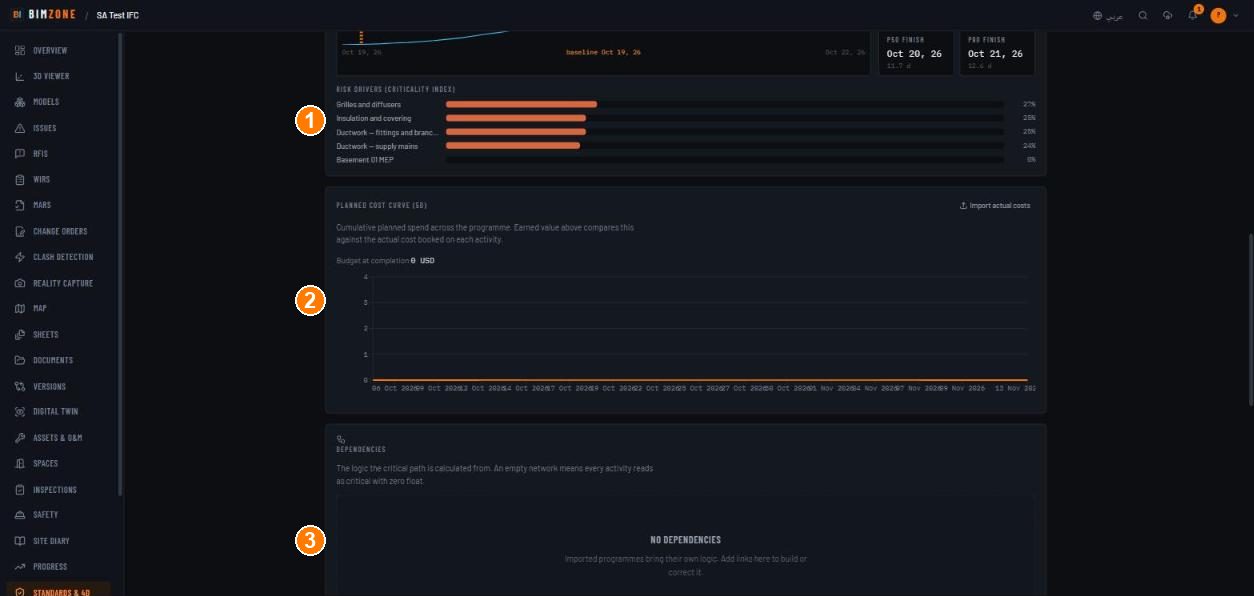
1 · Risk drivers (criticality index) · 2 · Planned cost curve (5D) with Import actual costs · 3 · Dependencies
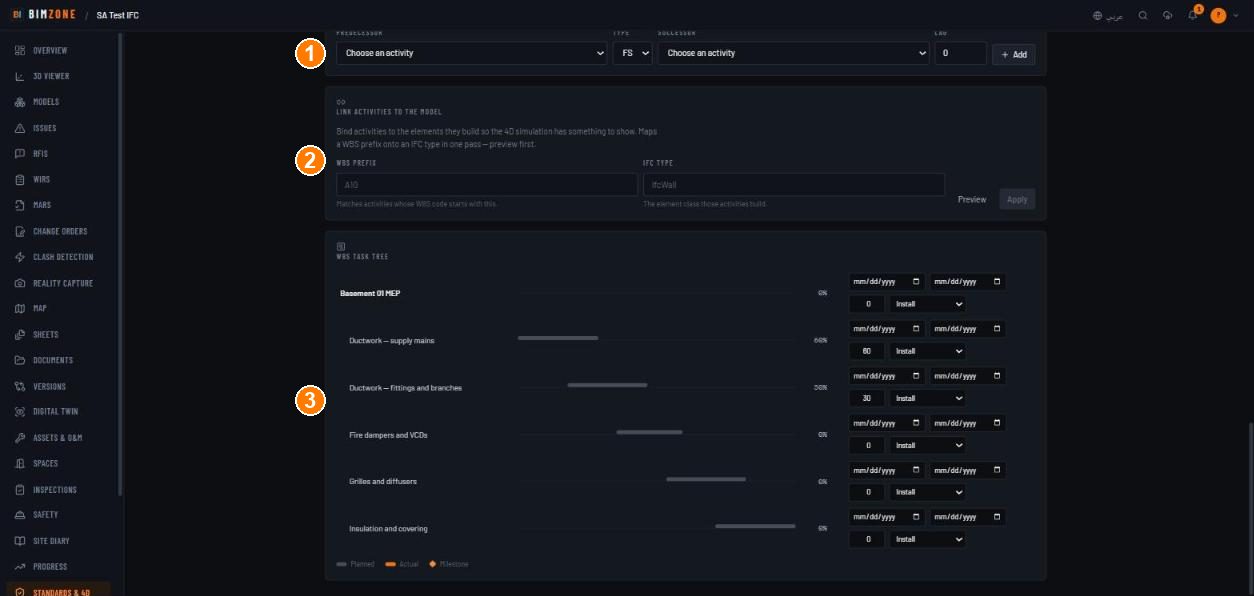
1 · Predecessor / Type / Successor / Lag / Add · 2 · Link activities to the model (WBS prefix → IFC type, Preview, Apply) · 3 · WBS task tree (actual %, dates, phase)
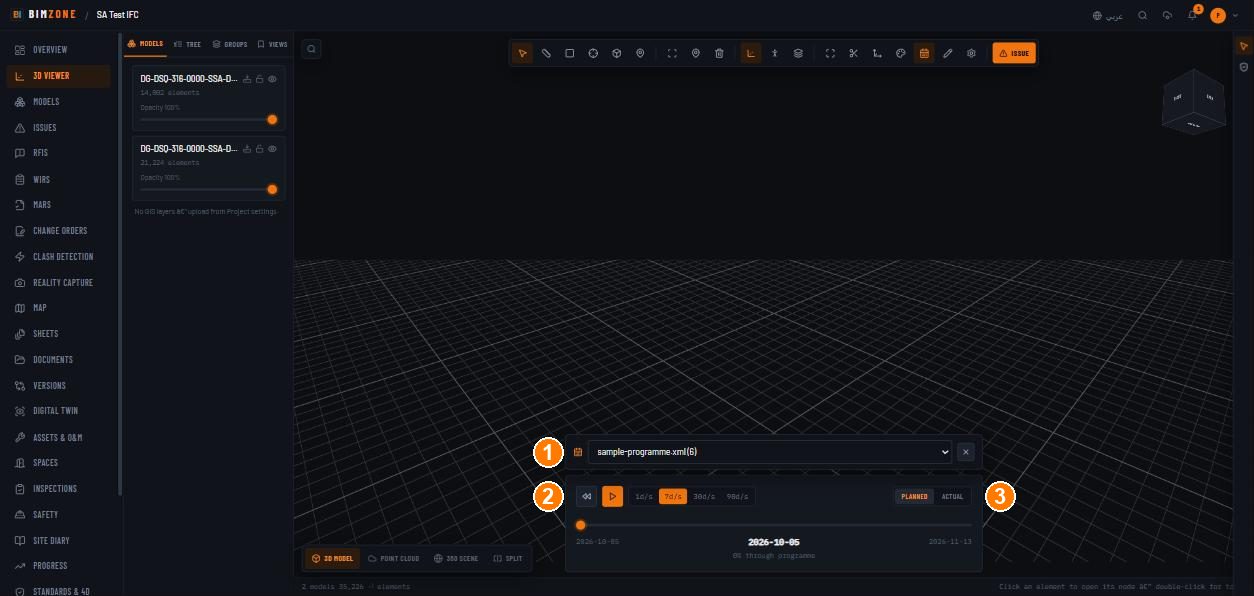
1 · programme select · 2 · rewind / play / speed · 3 · PLANNED / ACTUAL
Controls
Schedule select · Status date + Roll to today · Choose file + Import · Delete programme (admins; confirms first, takes tasks, dependencies, links and costs with it) · playback (rewind, play, 1d/s 7d/s 30d/s 90d/s, PLANNED / ACTUAL, slider) · Critical-path Gantt · Earned value · 5D cost tiles (SPI · CPI · SV · CV · PV · EV · AC · EAC) · Schedule risk (P50 · P80 · P90, confidence, contingency) · Risk drivers · Planned cost curve (5D) + Import actual costs · Dependencies (Predecessor · Type · Successor · Lag · Add; remove per row) · Link activities to the model (WBS prefix · IFC type · Preview · Apply) · WBS task tree (planned bar · % · start/end · actual % · phase select). The viewer's 4D timeline button mirrors the playback.
What happens after
Import creates the schedule (audit Schedule Imported); links are recorded (Schedule Task
Linked); dependencies re-solve CPM immediately; the risk simulation and EVM update on the status
date; Progress recompute reads the actual % values.
Connections to other modules
Viewer (timeline hides/colours elements), Progress (observed vs planned), Takeoff & Cost (Cost control reads the programme; Push quantities to the programme), Analytics (S-curve), Automation (no schedule triggers today). The Copilot has no schedule tool today.
Data in / data out
In: .xer / .xml, dependency edits, links, actual %, actual costs. Out: nothing exported from this
page; EVM figures appear in Cost control and the progress report.
Permissions and approval
Import, links, actual %: Admin, Upload Engineer. Dependencies, actual-cost import, Delete programme: Admin. Read: everyone. No approvals.
Common mistakes and troubleshooting
- "No schedules imported" — import a
.xeror.xml; CSV is not accepted. - Every task is critical, float 0 — no dependencies; add them.
- Viewer timeline shows nothing — no activities are linked to elements; use Link activities to the model.
- Auto-link matched 0 — the WBS prefix must match the activity codes your scheduling tool wrote (see the task tree), and the IFC type must exist in the model (see Groups › Categories).
- CPI reads 1.00 — "No actual cost is recorded, so CPI, CV and EAC are conventions rather than results."
- Confidence in baseline 1 % — the baseline finish is earlier than most simulated finishes; add float or contingency (P80).
Limitations and integration prerequisites
- Import only; there is no export back to P6/MS Project.
- Calendars come from the file; there is no calendar editor.
- No live sync with Primavera/MS Project — re-import a new revision as a new schedule.
Where to go next
5D cost
What it does
Three things under Takeoff & Cost plus the cost side of the schedule: a Bill of quantities measured from the model (with sheet measurements added), a versioned Rate library that prices it, and Cost control — budget, earned, spent, cost performance, forecast and variance against the programme, with Import actual costs and Push quantities to the programme.
Who uses it and why
Quantity surveyors and commercial managers. The model is measured once and priced reproducibly.
Prerequisites
A READY model; a programme (for Cost control); role Admin or Upload Engineer to create libraries, publish prices and import costs.
Step-by-step
- Takeoff & Cost › Bill of quantities: choose Group by (IFC type · IFC type and storey · Classification · Classification and storey), Model (All current models or one), and Prices (Quantities only, not priced or a rate library version). Read the KPIs (Elements, Carrying quantities "n of n", Items, Priced total) and the table (Item · Elements · Measured · derivedArea · derivedCount · derivedLength · derivedVolume). "Every element in this selection carries a measurement." — gaps, if any, are stated. Export BOQ.
- Rate library: New library (name, Currency — "Use the company currency" or an ISO code) › Add a rate per classification group › Save prices › Publish ("Publishing freezes these prices. To change them afterwards, create a new version." — New version).
- Back in the BOQ, pick the published library under Prices to see the Priced total.
- Cost control: choose the Programme; read Budget · Earned · Spent · Cost performance ·
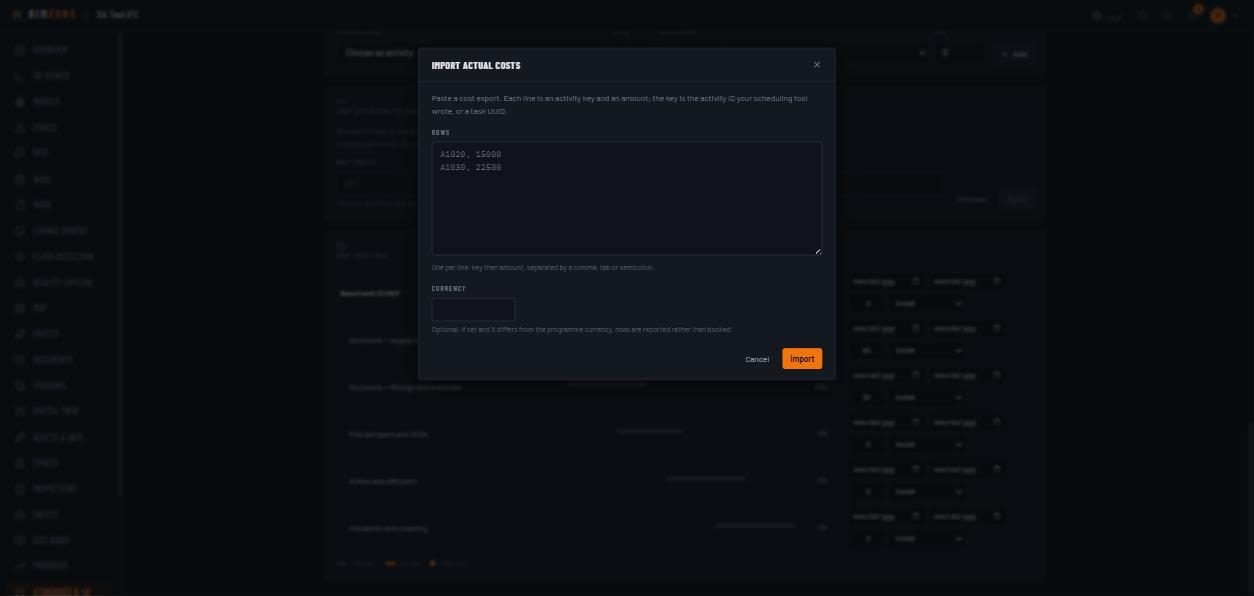
Forecast · Variance. Book actuals with Import actual costs on the Schedule tab ("Paste a
cost export. Each line is an activity key and an amount; the key is the activity ID your scheduling
tool wrote, or a task UUID." — rows
A1020, 15000; optional Currency: "If set and it differs from the programme currency, rows are reported rather than booked."). - Push quantities to the programme: Preview then Apply ("Schedule resources linked to a takeoff quantity keep the number they were last synced with — re-measuring the model does not move the programme's cost by itself. Preview first; applying writes cost.").
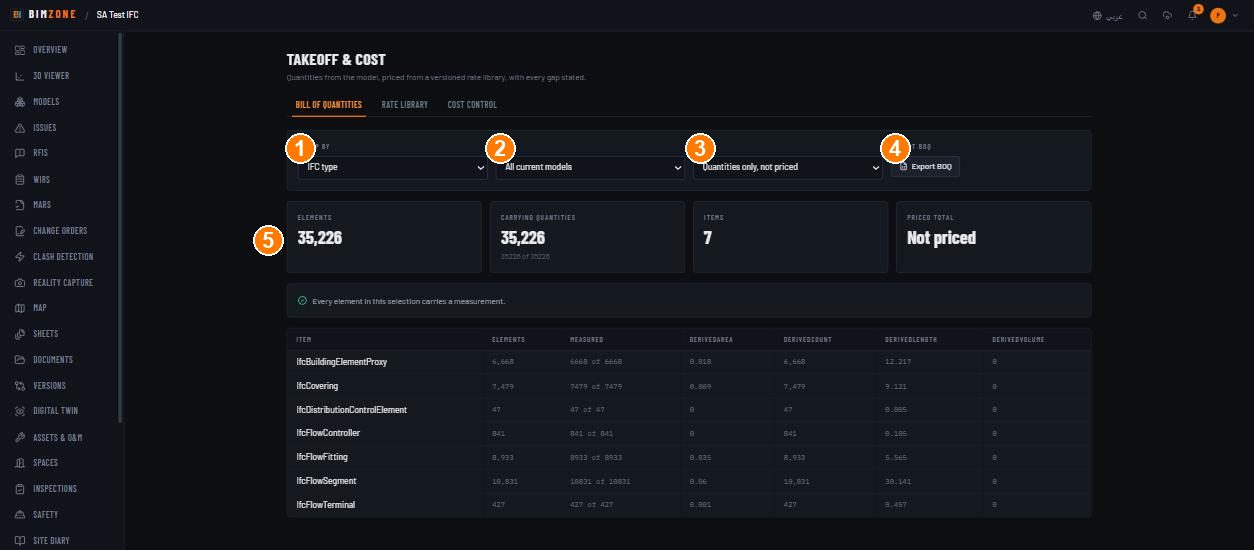
1 · Group by · 2 · Model · 3 · Prices · 4 · Export BOQ · 5 · KPIs and the measured table
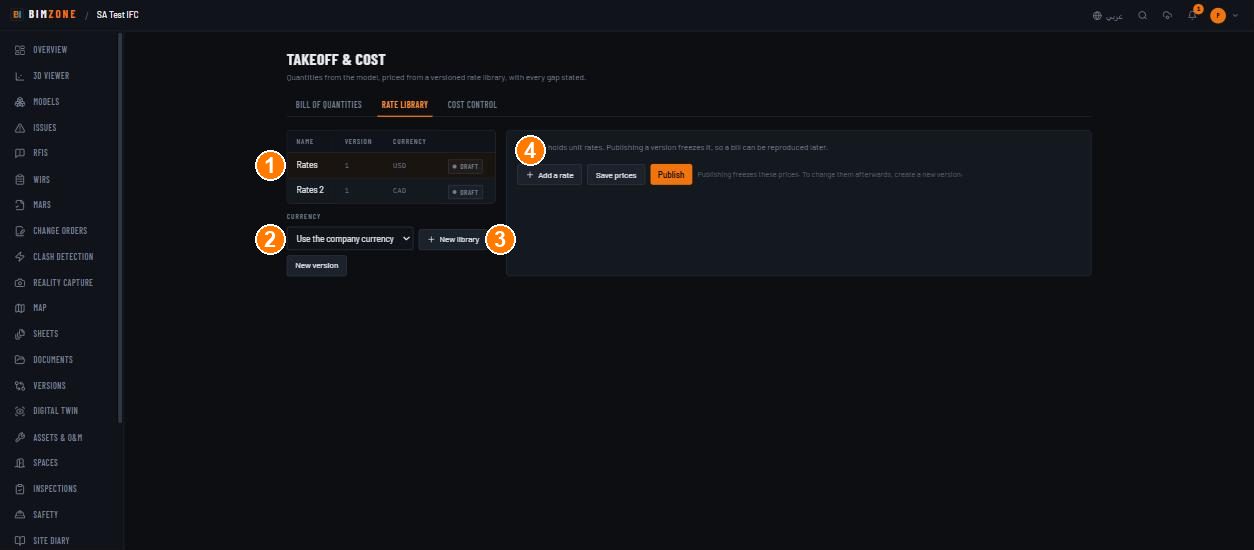
1 · libraries (name, version, currency, DRAFT/published) · 2 · Currency and New library · 3 · New version · 4 · Add a rate / Save prices / Publish
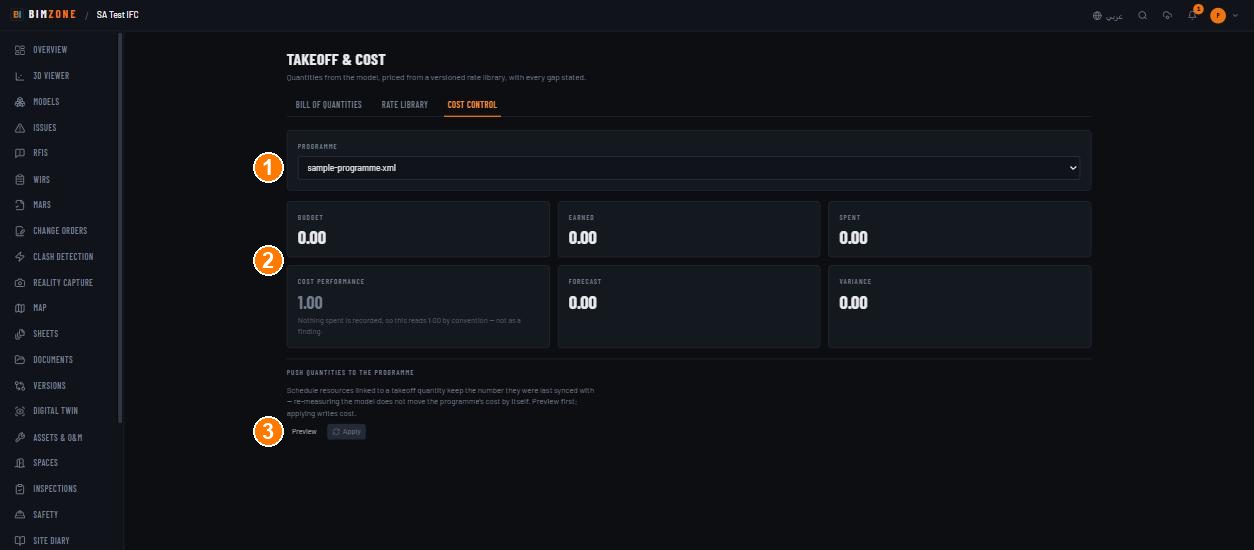
1 · Programme · 2 · Budget / Earned / Spent / Cost performance / Forecast / Variance · 3 · Push quantities to the programme (Preview, Apply)
Controls
BOQ: Group by · Model · Prices · Export BOQ · KPIs · table. Rate library: list · Currency · New library · New version · Add a rate · Save prices · Publish. Cost control: Programme · six tiles · Preview / Apply. Schedule tab: Import actual costs (Rows · Currency · Import).
What happens after
Publishing freezes a rate version so a bill can be reproduced later. Importing actual costs books
AC per activity and moves CPI/CV/EAC from convention to result. Pushing quantities writes cost onto
schedule resources (audit Schedule Actual Cost Imported, takeoff.library.create).
Connections to other modules
Models (quantities), Sheets (measurements with a classification "match a rate-library group so this prices with model quantities"), Standards & 4D (EVM, cost curve), Change Orders (commercial record; not auto-booked), Versions (quantity deltas), Accounting connector (cost codes, invoices — see Integrations).
Data in / data out
In: rates, actual-cost rows. Out: Export BOQ (CSV), cost figures in the progress report.
Permissions and approval
Libraries and publishing: Admin, Upload Engineer. Actual-cost import and Push quantities to the programme: Admin. Read: everyone. No maker-checker on prices; publishing is the control (a published version cannot be edited).
Common mistakes and troubleshooting
- Priced total "Not priced" — pick a rate library under Prices; drafts price too, but publish before reporting.
- Cost import rejected the whole batch — one malformed row rejects the batch on purpose (a half-applied import gives a plausible wrong CPI). The response names the row: unmatched key, a currency that differs from the programme's, a summary activity that would double-count, or a duplicate.
- Quantities changed but the programme cost did not — push them (Preview → Apply).
- Some elements "not carrying quantities" — the IFC lacks base quantities for those types; the BOQ says so rather than guessing.
Limitations and integration prerequisites
- Rates are per classification group, not per element.
- No ERP cost-code sync except through the accounting connector's cost codes.