Automation
"When X happens, and these conditions hold, do these things" — rules the project writes for itself, evaluated on the server so they fire whether or not anyone has the project open.
Related: Issues, RFIs & clashes · Reports & analytics › Sensors · Glossary
Automation rules
What it does
Server-side rules with a trigger (one event type), optional conditions on the event payload, and one or more actions (file an issue, notify people). Every run — fired or skipped — is recorded with its reason, and a rule can be dry-run against a sample event before it is enabled.
Who uses it and why
Project admins write rules; any member can read the rules and the run log. Typical uses: file a critical issue when a sensor threshold is breached, notify the discipline lead when a critical clash is created, chase overdue RFIs.
Prerequisites
Project role Admin to add, edit, enable, disable or delete rules.
Step-by-step
- Project settings › Automation › Add rule.
- Name ("Shown on whatever the rule produces.").
- Trigger — one of
anomaly.raised,clash.created,issue.created,issue.overdue,rfi.overdue,document.published("The event that starts the rule."). - Conditions › Add condition — Field (dotted into the event, e.g.
issue.priority), Operator, Value ("Values are read as JSON when they look like it, so5,trueand["a","b"]all work."). "All conditions must hold." Leave empty for "Every event of this type". - Actions › Add action — File an issue (Issue title — "Left empty, the rule's own name is used.", Priority, Description) and/or Notify people (Recipients — project members only, Message).
- Create rule. New rules start enabled; toggle Enable / Disable per rule; Edit; Delete ("Its run history goes with it.").
- Test a rule — a dry run: "Evaluates every rule for this trigger against a sample event and reports what would happen. A disabled rule is evaluated too and reported as not firing. Nothing is created and no run is recorded." Use it to catch a typo in a condition field, since fields are free text.
- Watch Recent runs — "What the rules actually did. A skipped run names the reason it did not fire."
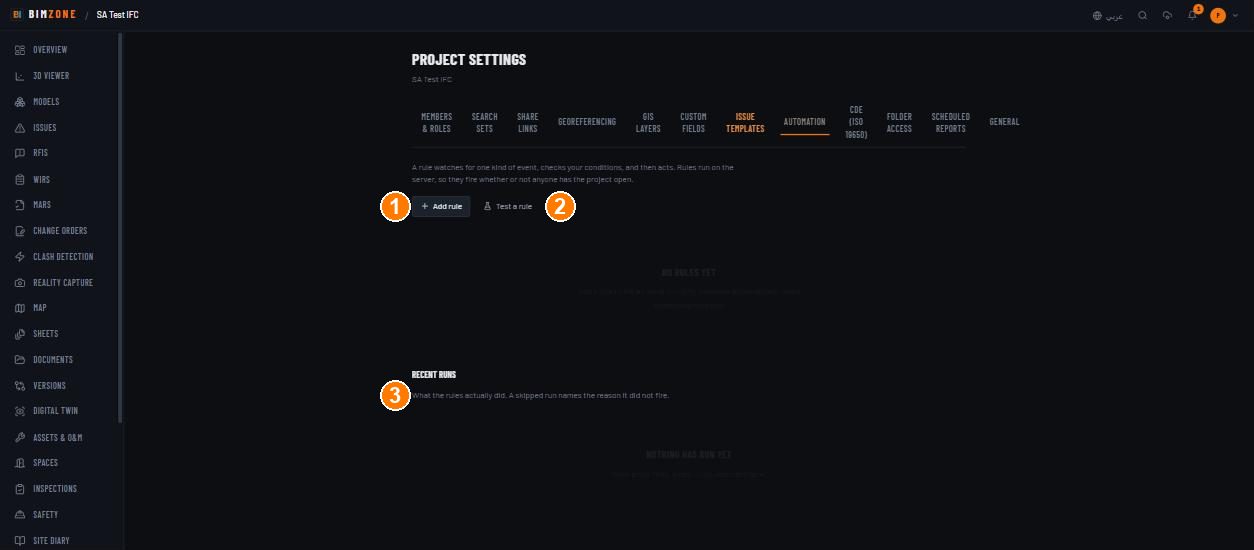
1 · Add rule · 2 · Test a rule · 3 · Recent runs
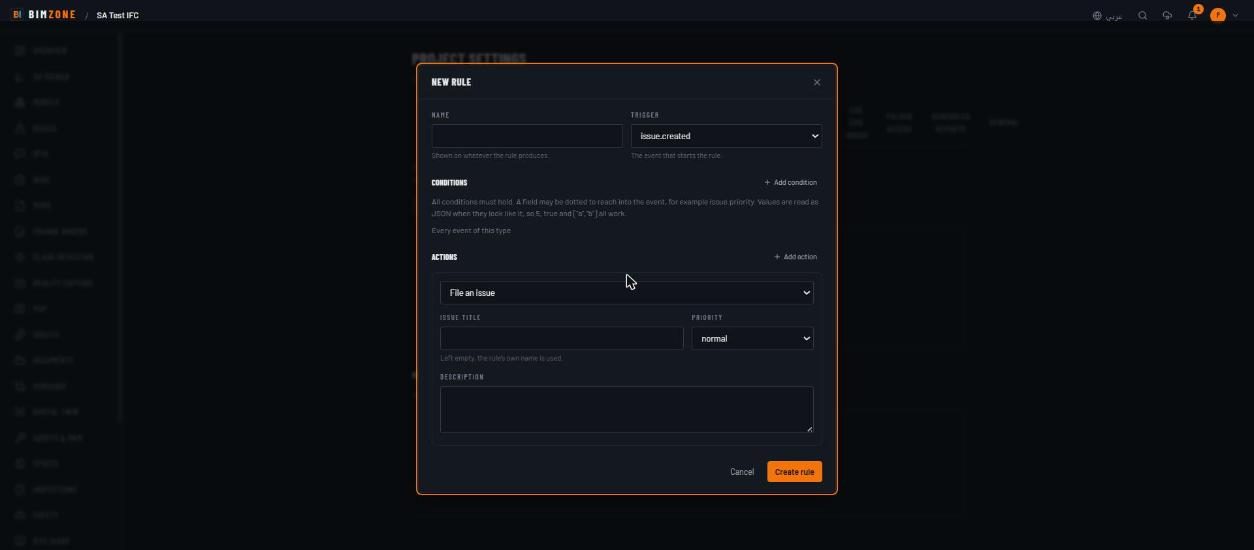
Controls
Add rule · Test a rule · rules table (Rule · Trigger · When · Then · Status) with Enable / Disable / Edit / Delete · New rule dialog (Name, Trigger, Conditions, Actions, Create rule) · Recent runs.
What happens after
The rule runs on the server when its event fires. A filed issue is a real issue (it emits
issue.created, which other rules may match — loops are guarded by provenance and a depth cap).
Notifications reach the recipients' notification tray.
Connections to other modules
Sensors (thresholds raise anomaly.raised), Clash Detection (clash.created), Issues
(issue.created, issue.overdue; issues are the output of File an issue), RFIs (rfi.overdue),
Documents (document.published), Notifications.
Data in / data out
In: rule definitions. Out: issues and notifications; the run log.
Permissions and approval
Write: Admin. Read rules and runs: any member. No approvals.
Common mistakes and troubleshooting
- Rule never fires — check Recent runs: a skipped run names the reason (usually a condition field typo). Dry-run it with Test a rule.
- "Give the rule a name." — required.
- Wanted a status change —
set_statusis accepted by the API but the dispatcher cannot perform it, so it is deliberately not offered in the UI. - Too many issues filed — narrow the conditions (e.g.
severityeqcritical).
Limitations and integration prerequisites
- Six triggers today; no schedule/time trigger; no webhook action (use outgoing webhooks from the API for external calls).
- Condition fields are free text — the dry run is the validation.